
Client Profile Management
The Premium plan lets you creat

e a unique user account for each of your clients. For every client, you can set up customized boards for in-session work or at-home self-practice.
Adding a New Client
To add a client to the system, click the + Add button in the top toolbar

Enter two letters in English, a dash, followed by the 3 digits (AW-123).
Click “Add a Client” to save the new client.

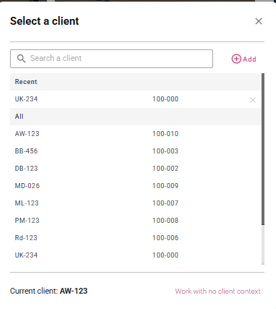
Switching Clients
The current client is displayed in the colored pink section of the top toolbar

To switch, click that pink button and choose another client from the list.
Deleting Client Profiles
You can delete client profiles directly from the Cognishine platform.
Note: Only users with administrator rights within your organization are authorized to delete client profiles.
Click your name in the top-right corner of the screen to open the menu. From the dropdown, select “Organization”

In the left-hand column, click on “Clients.”

Select the clients you wish to delete. Confirm the deletion. The selected client profiles will be permanently removed from your organization.

Client workspace
In the Client workspace, you’ll find detailed data for each client.

Including usage reports, synchronous session summaries, self-practice data and assigned activities and usage details.
