
Organization Management Overview
Note: these settings can only be accessed by the Admin(s) of accounts on the Premium plan.
Accessing Organization Management settings
Click your username in the top right corner and select "Organization".

You will then see the subsections for Organization Management on the left side.
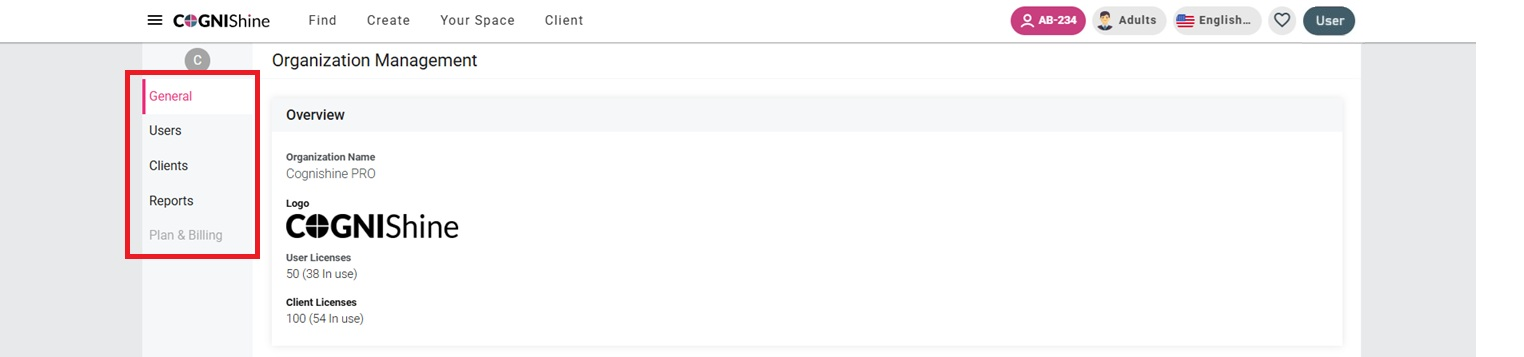
General
This screen displays basic information about your account, including the number of user and client licenses you have in use and available.
Users
This screen displays all users in your organization. You have the option to add new users and export user data. By clicking the three dots on the right side you can edit user details, resend invitation to users who have not yet registered, and change their account privileges (i.e. move them between Viewer, Content Manager, and Admin).
For details of how to add or delete users see this guide: https://help.cognishine.com/article/176-adding-and-deleting-users

Clients
This screen displays all clients registered under your organization. You can add, rename, search for, or delete clients from this screen.

Reporting
This screen allows you to generate and export detailed reports of your organization's usage across the platform.
